Skip to content
  • Home
  • Account
  • Restricted content
  • OBEX
  • Chips Tips
  • Logout
  • Shop
  • QuickBytes
Propeller OBEX
  • OBEX
  • Forum
Login
Propeller OBEX

Propeller 2

  • Configuring Visual Studio Code for Programming the P2 on Mac, Windows, and Linux
  • Breakout Board Options for P2 Edge Modules
  • Solar Panel Monitoring Demo (Intro to Using Video 3 of 3)
  • Wireless Programming with the ESP8266 WX Module
  • Brushless DC Motor Control Demo
  • Colorful Terminal Output with ANSI Escape Sequences
  • XBee RF Transparent and API Mode Demo
  • DS3231 Real Time Clock I2C Demo
  • Multiple Servo Control (up to 64) Object
  • Multiple Serial Port (8 UART – 16 Tx/Rx) Object
  • Goertzel Operation with Ultrasonic Transducers
  • Web Page Control of WS2811 LEDs Using the IoT Gateway on Raspberry Pi
  • 320×240 LCD Driver for ILI9341 Controller and XPT2046 Touch Screen
  • Digital Sample ADC to DAC + Analog Frequency to DAC
  • Using Smart Pins to Measure Frequency Output of TSL235R Light-to-Frequency Sensor
  • Ping))) Ultrasonic Distance Sensor with Graphical Debug Demo
  • Simple Analog Input
  • P2 Edge 16 MB Flash Reader and Explorer Utility
  • LED Matrix used as an I/O Test Utility
  • Arlo Conversion to P2 with the Universal Motor Controller
  • Five Buttons On One Pin
  • P2 RTC Add-on Board Demo
  • Simple Video Driver – Using Images (Intro to Using Video 2 of 3)
  • Starting Your P2 Project with a Spin2 Template
  • E-Ink Display Demo
  • MAX7219 LED Display SPI Demo
  • DHT11, DHT22, CM2302 Humidity and Temperature Sensor Object
  • NMEA GPS String Parsing
  • Floating Point Math: DEBUG and Terminal Display Example
  • LEDs – Beyond the Basics
  • Quadrature Encoder Object
  • P2 RTC Add-on with GPS Module
  • DVI/VGA Text Driver Demo
  • PCF8574 I2C LCD Demo
  • Simple Sound Engine Demo
  • 1-Wire Driver with DS18B20 Temperature Sensor Demo
  • Send Email from the Propeller 2 Using the IoT Gateway on Raspberry Pi
  • I2C Device Bus Scanner Utility
  • 32-Channel ADC Object
  • Tetris
  • Video Hardware with Character Map Demo (Intro to Using Video 1 of 3)
  • WS2811, WS2812, WS2812b, WS2813, SK6812x NeoPixel Object
View Categories
  • Home
  • Docs
  • Quick Bytes
  • Propeller 2
  • 1-Wire Driver with DS18B20 Temperature Sensor Demo

1-Wire Driver with DS18B20 Temperature Sensor Demo

Reading Time: 3 min read


Description #

This QuickByte shares two SPIN2 code examples that enable the P2 to communicate with 1-wire devices. We are using
the common DS18B20 1-wire temperature sensor in these examples, although the driver could be extended for any
1-wire device.

  • Example 1: Search 1-wire bus for DS18B20 device, display the serial number and temperature on a
    serial terminal.
  • Example 2: Based on a known DS18B20 serial number, read the temperature and display on a serial
    terminal.
Connect Up Your Hardware #
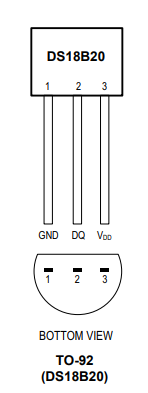
1 = GND (Connect to one of the GND pins on your P2 breakout board)

2 = P2 I/O Pin (Connect to an I/O pin, P7 used in the example code)

3 = 3.3V (Connect to One of the Vxx pins on your P2 breakout board)

Load the Code #

The two example code archives are available to download from the Source Code link below.

Open Propeller Tool and load the code example.

Tip: Unzip the example code archive and then use PropellerTool to open the main file, which in
the case of these examples can be identified by the _demo tag at the end of the filename. You can always find
the main file of any PropellerTool archive by consulting the “_README.txt” file inside the archive. All the
source code files are listed, with the main file at the top.

In the example code files, ensure the 1-wire I/O pin matches the pin connected to your sensor. We have used pin 7
in the example, but you can change it to any spare I/O pin you prefer:

And for example 2, also ensure the serial number of the 1-wire device matches your serial number! You can read
your serial number using code example 1.

Within PropellerTool:

  1. Press F7 to identify your P2, and make a note of the COM port number
  2. Press F10 to load the Code into the P2 microcontroller
  3. Press F12 to open the Parallax Serial Terminal (PST) software

The code will now be running in your P2, and will be waiting to receive a keypress on the serial terminal before
it starts transmitting data. This allows you time to set up your serial terminal as follows:

Within the PST:

  1. Select the correct COM port number for your microcontroller (from the F7 step above)
  2. Click Enable
  3. Click inside the text box near the top of the PST window, then press enter

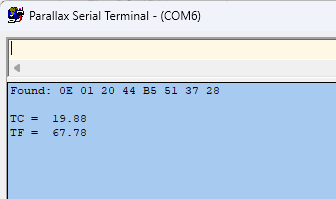
Once you press Enter, the output from the P2 program will be displayed in the terminal. This is the typical
output from Example 1:

Connecting 1-wire devices to the Propeller P2 is very simple, and in most cases they do not require any
additional components, such as pull-up or series resistors, as the P2 SmartPins can emulate those functions.

For help please feel free to ask your questions here, or for a wider audience of helpers at our Forums: https://forums.parallax.com.

Parts Used #
  • DS18B20
    TO-92 Digital Thermometer Temperature IC Sensor
  • 3" Jumper Wires (1 bag of 10)
  • P2 Edge
    Module
  • P2 Edge Breadboard
  • Prop Plug Rev E
  • USB Mains Adapter, 18W, 5V, 3A
  • USB A to DC 2.1mm Jack Cable
  • USB A to Micro B Cable
Source Code #
  • 1-Wire Driver with DS18B20
    Quick Byte Code
Programming Language #
  • Spin 2
  • PASM2
Tools and Operating System #
  • Propeller
    Tool for Windows
  • FlexProp for Windows, Mac and Linux
Additional Resources #
  • Propeller 2
    Spin Documentation
Document Author #
  • Michael Mulholland
Source Code Author #
  • Jon McPhalen

Was this useful ?

Share This Article :

  • Facebook
  • X
  • LinkedIn
Still stuck? How can we help?

Still stuck? How can we help?

Updated on September 29, 2026
Simple Sound Engine DemoSend Email from the Propeller 2 Using the IoT Gateway on Raspberry Pi
Table of Contents
  • Description
  • Connect Up Your Hardware
  • Load the Code
  • Parts Used
  • Source Code
  • Programming Language
  • Tools and Operating System
  • Additional Resources
  • Document Author
  • Source Code Author

Copyright © 2026 - Parallax Inc.
599 Menlo Drive | Rocklin, CA 95765 | USA